
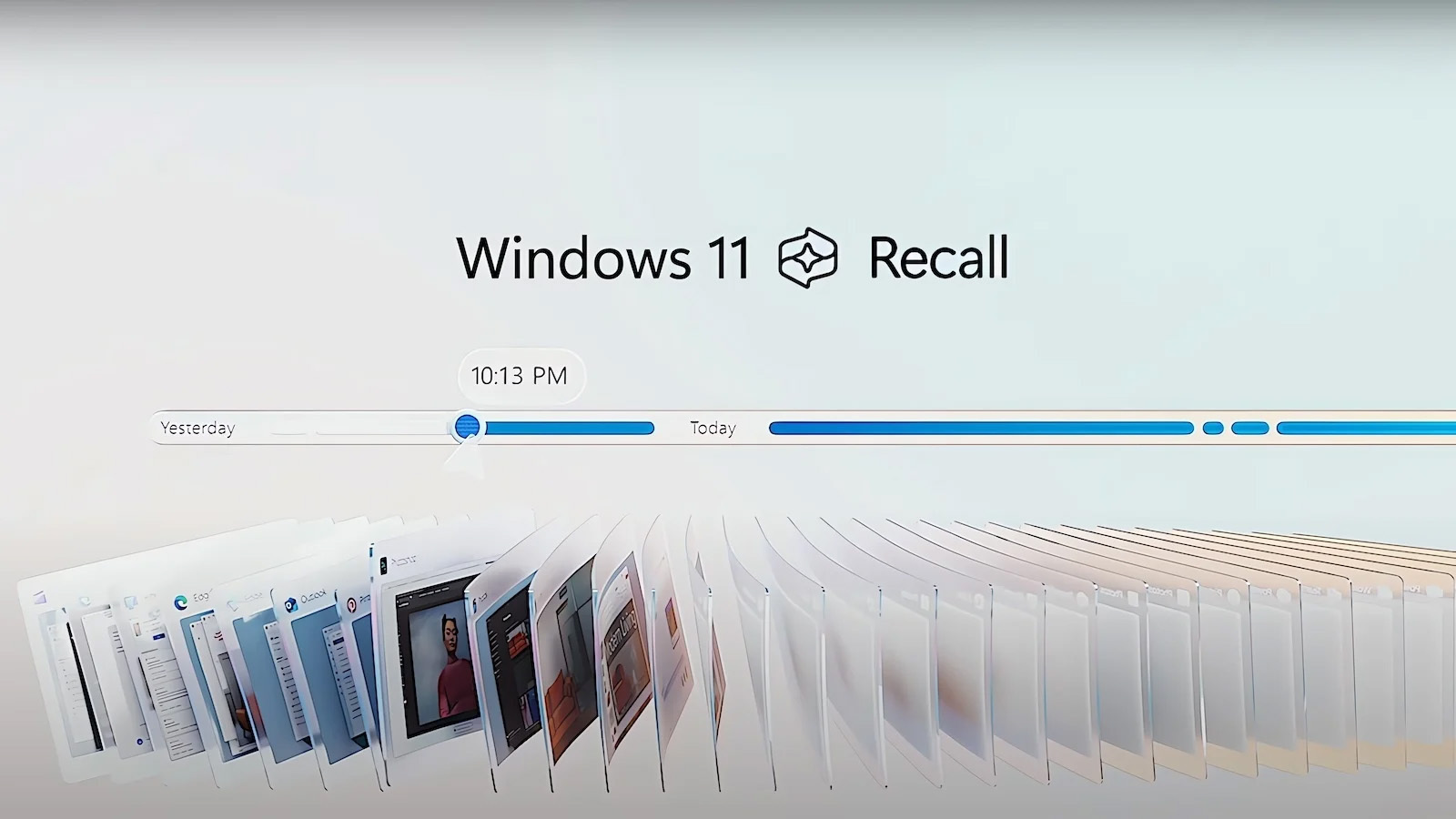
Microsoft recently introduced a feature called Recall for Windows 11 on Copilot+ PCs. At first glance, it sounds amazing—an AI-powered memory for your computer that helps you “recall” what you were doing days or weeks ago. But before you jump in, let’s talk about what it really does, why some people are concerned, and how you can turn it off if you prefer.
What is Windows Recall?
Recall is designed to take periodic snapshots of your screen and store them locally. These snapshots create a searchable timeline of your activities—documents you opened, websites you visited, apps you used. The idea is that you can quickly find something you worked on without remembering the file name or location.
Sounds convenient, right? But here’s the catch…
Why Are People Disabling Recall?
While Recall can be helpful, it raises some serious privacy and security concerns:
- Sensitive Information Exposure
Those snapshots might include passwords, private messages, financial data, or confidential work documents. - Data Breach Risk
If someone gains access to your PC, they could see everything Recall has stored. - Performance Impact
Constantly capturing and indexing snapshots uses system resources, which might slow down your machine.
For businesses and privacy-conscious users, these risks often outweigh the benefits.
How to Disable Windows Recall
Microsoft’s Recall feature on Windows 11 Copilot+ PCs is designed to help you find what you were doing by taking periodic snapshots of your screen. While this sounds convenient, many users are concerned about privacy, security, and performance. If you want to turn it off, here are the easiest ways to do it.
Method 1: Disable Recall via Settings
- Open Settings
PressWin + Ior click the Start Menu and select Settings. - Go to Privacy & Security
In the left sidebar, click Privacy & Security. - Find Recall & Snapshots
Scroll down and select Recall & Snapshots. - Turn Off Recall
Toggle the switch Off to disable Recall.
(Optional) Click Delete Snapshots to remove any previously stored data.
Method 2: Disable Recall Using Command Prompt
If you prefer the command-line approach, run this command in Command Prompt (Admin):
DISM /Online /Disable-Feature /FeatureName:Recall This uses DISM (Deployment Image Servicing and Management) to disable the Recall feature on your current Windows installation.
Method 3: Disable Recall via Group Policy (For IT Admins)
- Press
Win + R, typegpedit.msc, and hit Enter. - Navigate to:
Computer Configuration > Administrative Templates > Windows Components > Recall - Set Turn off Recall to Enabled.
Method 4: Disable Recall via Registry Editor
- Press
Win + R, typeregedit, and hit Enter. - Navigate to:
HKEY_LOCAL_MACHINE\SOFTWARE\Policies\Microsoft\Windows\Recall - Create a DWORD (32-bit) Value named
DisableRecalland set its value to1.
Final Thoughts
Recall is a powerful feature, but it’s not for everyone. If privacy and security are top priorities for you—or if you simply don’t want your PC keeping a visual diary—disabling Recall is a smart move.
